> ## Documentation Index
> Fetch the complete documentation index at: https://help.gmax.ai/llms.txt
> Use this file to discover all available pages before exploring further.
# How to Schedule Using the Calendar
## Use our calendar feature to easily schedule your clips. Here's how:
* Navigate to the "Calendar" tab in the left sidebar.
* Click "New Post" or find a suitable time slot on the calendar. You can also click the "+" button in the month/week view.
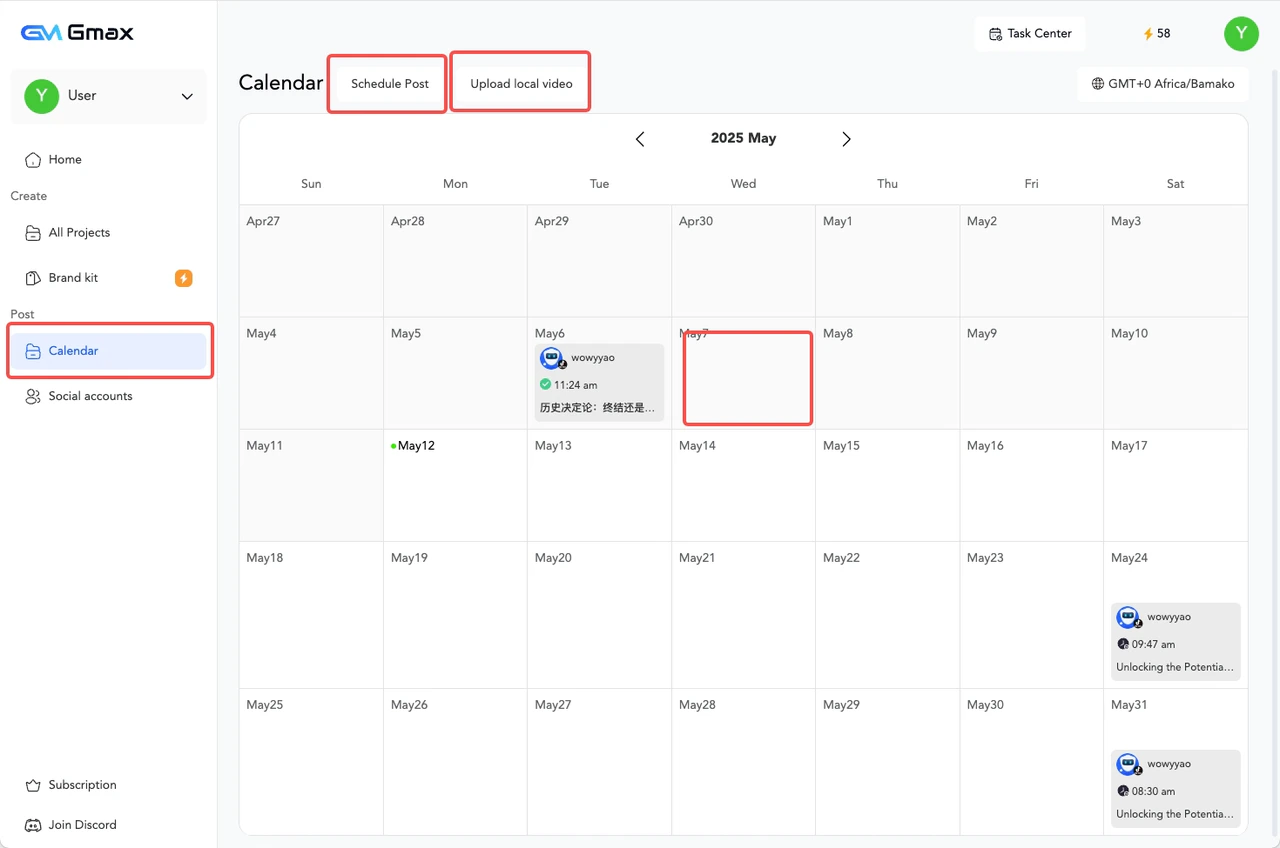 * Select the exported video you want to schedule.
* Choose the social media accounts where you want to publish the short video/clip. You can select multiple accounts at once for cross-platform publishing.
* If you want to add a new account, click "Manage Accounts" and connect to the social media platform you want to publish to.
* Select the exported video you want to schedule.
* Choose the social media accounts where you want to publish the short video/clip. You can select multiple accounts at once for cross-platform publishing.
* If you want to add a new account, click "Manage Accounts" and connect to the social media platform you want to publish to.
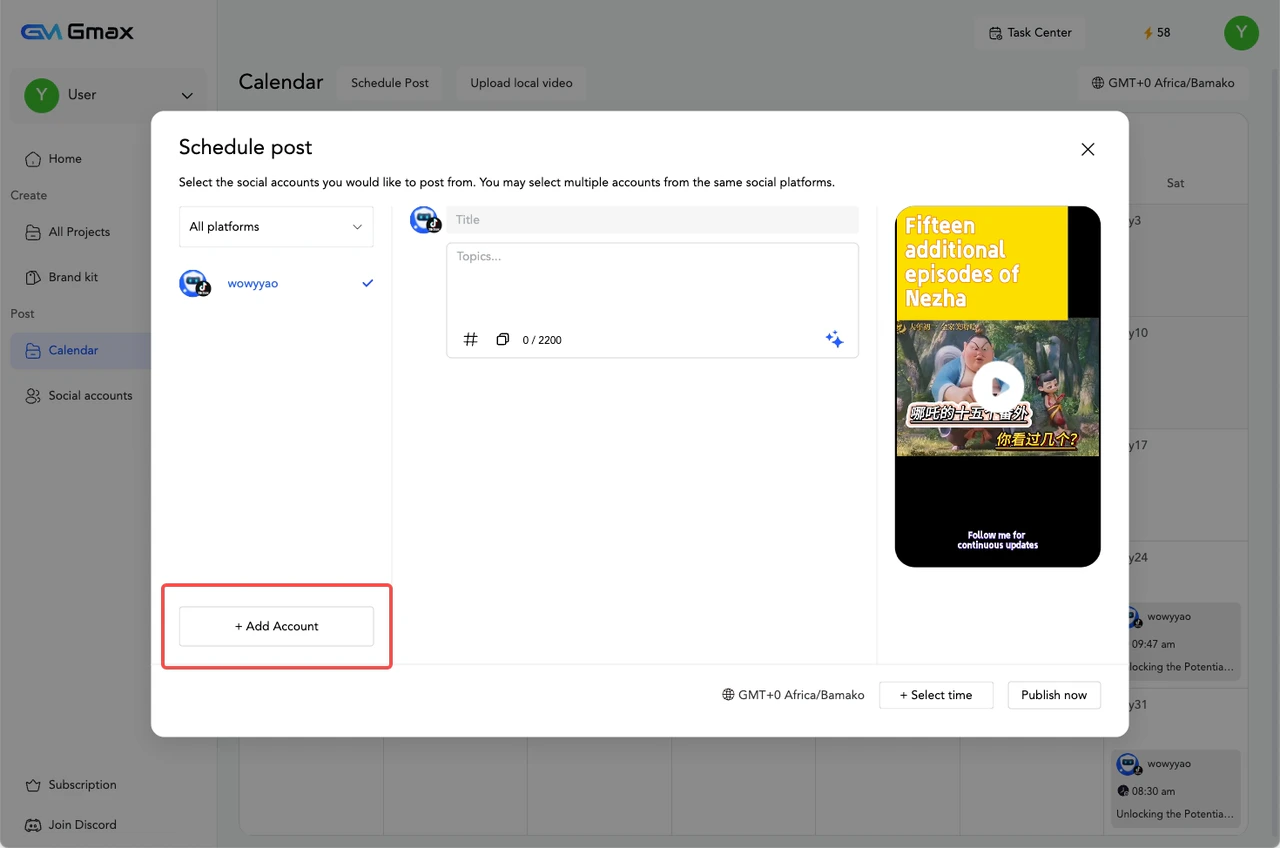 Once you have selected the time, you can click Confirm to send. Before sending the post, you can preview or delete it, change the title, and perform other actions.